
- What is RAM?
- How it works: the CPU does not talk to the disk
- RAM, storage, cache and virtual memory: four things people confuse
- What RAM is for
- Types of RAM: DDR4, DDR5 and friends
- RAM vs ROM
- How much RAM do you need?
- Signs your memory is letting you down
- How to check your RAM
- Frequently asked questions
- The bottom line
There is a line everyone pins on Bill Gates, and he spent years denying he ever said it: «640K ought to be enough for anybody». The line came out of a misunderstanding, as Quote Investigator documented, and it does not matter whether he said it or not. What matters is that we are still arguing about it almost forty years later. The question underneath never changed. How much memory is enough? And what happens to your machine when it is not?
I will give you the short answer first. RAM is the resource you notice most when it runs out, and the one people diagnose worst. Nobody gets an alert that says «you are low on memory». What you get is a laptop that feels slow, a game that stutters at the worst possible moment, or a server that answers in fits and starts while everyone blames the network. RAM rarely shows its face. You end up paying for it anyway.
Here is what I will walk you through: what RAM is, how it works, how it differs from storage and cache, how DDR4 and DDR5 differ, how much you actually need, and how to catch the problem before the service falls over.
What is RAM?
RAM stands for Random Access Memory. That is your computer’s working memory, the place where it keeps everything it is using right now. The code of the app you have open, your browser tabs, the variables the processor is juggling, the spreadsheet you have not saved to disk yet. All of it lives in RAM.
Three properties explain almost everything else:
- It is volatile: cut the power and it is gone. That is why you save the document before you close Word. Without current, that memory remembers nothing.
- It is fast: we are talking nanoseconds, two or three orders of magnitude faster than the best NVMe SSD. When the system has to reach for the disk because RAM ran short, you feel it. Badly.
- It is random access: the processor can read any location directly, without walking through the data one item at a time. That is where the name comes from.
One detail trips people up. The RAM in your PC is DRAM, dynamic memory that must be refreshed constantly or it loses its data. SRAM, the static kind, is faster and considerably more expensive, and it lives inside the processor itself as cache memory. When you and I say «RAM», we almost always mean DRAM.
How it works: the CPU does not talk to the disk
The processor does not run programs straight from the disk. First it loads the code and the data it needs into RAM, then it works on them there. If there is enough memory for everything the system wants at hand, the CPU runs at its own pace. If there is not, the operating system starts juggling. It moves things from RAM to disk and from disk back to RAM to make room. That swap is paid for in latency, and you feel it in every click.
Keep one asymmetry in mind. More RAM does not make you faster on its own. A machine with 64 GB and a saturated CPU will still crawl. Where memory pays off is when the real workload demands more than you have. Then the punishment is immediate. Contention between processes goes up, the system burns time deciding what stays in memory and what goes to disk, and response times blow up. What extra memory does is take a problem off your plate.
You can watch this happen without opening a single tool. Do the same task twice in a row on a machine that is short on memory, and the second pass is slower than the first, because the system has to push pages out to disk and pull them back in. On a machine with memory to spare, the second pass is just as quick, and the disk stays quiet.
RAM, storage, cache and virtual memory: four things people confuse
These four concepts get mixed up in almost any conversation about «slow computers». Each one plays in a different league:
| Concept | What it holds | Speed | Survives power off? |
|---|---|---|---|
| CPU cache (L1/L2/L3) | Data the processor reuses instantly | The fastest (ns) | No |
| RAM | What the system is using right now | Very fast (~100 ns) | No |
| Storage (SSD/HDD) | Your files, permanently | SSD: µs · HDD: ms | Yes |
| Virtual memory (swap/page file) | An extension of RAM using the disk | The disk’s, very slow | Yes (it is disk) |
The gap between RAM and storage is two to three orders of magnitude. That is why virtual memory is no free trick. When the system reaches for the disk to make up for RAM it does not have, it works, sure, but everything crawls while it does. On Linux it is swap, on Windows the page file. That it exists is normal. That it runs daily is not.
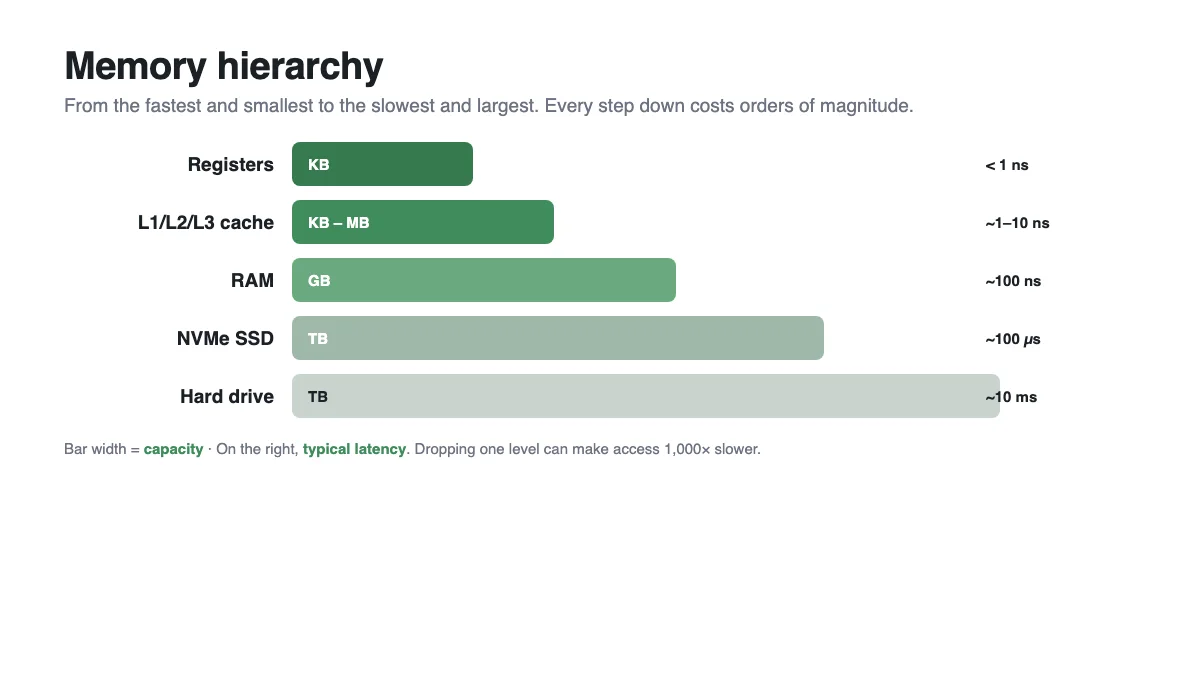
RAM vs storage
This is the confusion that causes the most trouble. Storage, whether it is an SSD or an HDD, is where your files live permanently: documents, photos, installed programs. RAM is where whatever you are using at this moment lives. A bigger SSD makes your system start faster and loads files faster, and it does nothing for how many things you can keep open at once. That is RAM’s job, and no amount of disk space replaces it.
What RAM is for
Put plainly, it lets you keep several things open at the same time without the machine drowning. The browser with twenty tabs, the video editor, the game, the office chat and a virtual machine. All of it lives in RAM at once, and everything you open asks for its share.
While there is memory for everyone, the system hums along. When there is not, you get the story I told you above. The operating system starts shipping things to disk to make room, and that is where the computer «gets slow» with no obvious reason. On a server it works the same way. A database or a farm of virtual machines uses RAM as a cache to avoid touching the disk on every query. Less RAM means less cache and more trips to disk, and the bill shows up as waiting users. Give the database more memory and it keeps more of its working set in RAM, so each query that finds its data there is a query that never waits on the disk at all.
Types of RAM: DDR4, DDR5 and friends
Not all RAM is equal, and you cannot swap it carelessly. When you buy or upgrade, look at four things:
- By technology: your machine’s is DRAM, and SRAM is the kind built into the processor as cache.
- By generation: DDR3, DDR4 and DDR5. They do not mix, and what counts is what your motherboard supports.
- By form factor: DIMM for desktops and servers, or SO-DIMM for laptops.
- With or without ECC: servers use ECC memory, which detects and corrects errors, while home machines usually do not.
And what about the speed, those famous MHz? They matter, but far less than the marketing suggests. With barely enough memory, running it faster fixes nothing. With memory to spare, the difference is marginal. Capacity weighs more than frequency, and that is the number you should obsess over.
DDR4 vs DDR5
If you are building or upgrading, this is the decision that actually affects you. DDR5 is not «DDR4 with a bigger number». It is a new generation with a different way of working.
| DDR4 | DDR5 | |
|---|---|---|
| Speed (JEDEC) | up to 3,200 MT/s | from 4,800 MT/s |
| Capacity per module | up to 32 GB | up to 64 GB |
| Voltage | 1.2 V | 1.1 V |
| Compatibility | Not interchangeable: each generation needs its own motherboard | |
The specifications are set by JEDEC, the body that standardises memory. Day to day, the point of DDR5 is not that your browser will run twice as fast. It moves more data per second and allows more capacity per module, and that is what your workload eventually feels. If you already have DDR4, changing generation means changing the motherboard and, usually, the processor. Do not do it just to «have the latest». If you are building new, DDR5 is the natural path.
RAM vs ROM
They are similar in name and little else. RAM is working memory, volatile and writable: what you lose when you power off. ROM (Read-Only Memory) is read-only and non-volatile, and it holds the firmware, the basic instructions the machine needs to boot. That is why your computer «remembers» how to start up even after being unplugged for weeks, yet loses the document you did not save. RAM is measured in gigabytes. Boot ROM, in kilobytes or megabytes.
How much RAM do you need?
This is where everyone wants a number, and where the honest answer is «it depends». But «it depends» helps nobody, so let me pin it down by real use, with headroom:
| Use | Recommended RAM |
|---|---|
| Browsing, office work, video | 8 GB |
| Gaming and demanding general use | 16 GB |
| Design, video editing, virtual machines | 32 GB |
| Development, containers | 32–64 GB |
| Servers and databases | 64 GB or more |
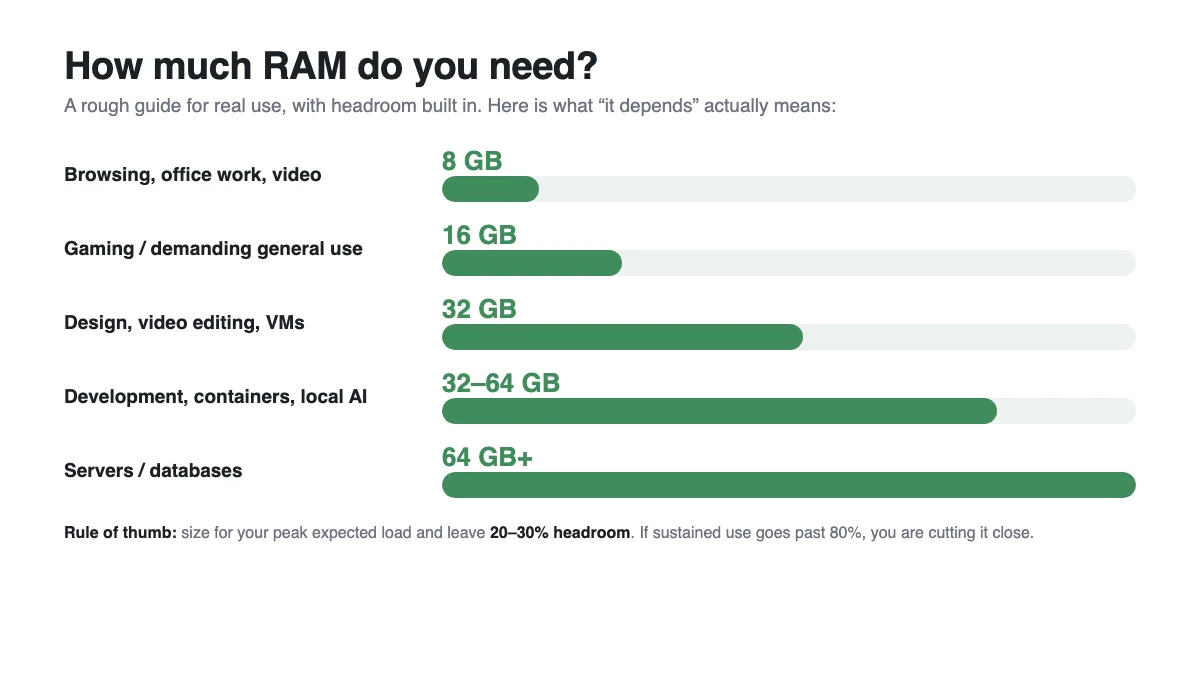
Two things almost nobody accounts for:
- The browser is the biggest eater. Twenty open tabs can use more memory than the game running in the background. If you never close anything, your «8 GB» are really a lot less.
- Virtual machines and containers multiply consumption. Each VM reserves its share, and in Kubernetes the requests and limits are the difference between running smoothly and the system starting to kill processes. If a database is underneath, headroom matters even more, because RAM decides how much of the dataset is served from memory and how much goes to disk.
The rule I use: size for the peak expected load and leave 20–30 % headroom. If sustained use regularly goes past 80 %, you are running tight, whatever the spec sheet says.
Signs your memory is letting you down
Running short of RAM rarely shows up as an error. It shows up as odd behaviour, and we blame it on something else:
- Intermittent slowness. Fine under light load, then stalling irregularly when you open several things at once. This is one of the first symptoms, and the easiest one to dismiss as a coincidence.
- The disk never stops working. The system is paging to disk continuously. On Linux you see it with
vmstatorsar. On Windows, the page file grows non-stop in front of you. - Spikes in page faults. Minor faults are normal. Major page faults mean going to disk and carry a real cost. If they rise and stay high, that is a warning you should not ignore.
- A process that keeps growing. A program that uses more and more memory and never releases it, a leak, ends up choking everything else on the machine.
- Restarts or closes you did not ask for. On Linux, the OOM Killer kills processes when memory runs out. It usually comes after a stretch of degradation, so if you do not watch it happen, the restart looks like the problem when it is really the consequence.
And yes, there is one classic that never fails: blaming the network. When a system responds in fits and starts, the first thing people check is the connection. Sometimes it is the network. Many other times, it is memory asking for help with its mouth shut.
How to check your RAM
You do not need fancy tools. Your own system tells you, and it takes less than a minute:
- Windows: Task Manager → Performance → Memory. Watch «In use» and, above all, «Committed». If it approaches the limit, you are under pressure.
- Linux:
free -hfor the picture andhtopto see which process is eating memory. Watch the available column, which is more useful than free. - macOS: Activity Monitor → Memory. The «Memory Pressure» graph sums up the situation better than a raw percentage.
A single snapshot misleads, because every machine looks busy now and then. What matters is the trend. If used memory climbs week after week without you changing anything, you have a sizing problem or a leak. You can see that before the service falls over, not after. That is the whole point of checking. Take a reading with your normal workload running, then take another at the end of a long day, and compare the two readings side by side.
Frequently asked questions
What does RAM stand for?
Random Access Memory. The name refers to how it is accessed: the processor can reach any location directly instead of reading through everything that comes before it.
Can you add more RAM to a computer?
On a desktop or a server, almost always: there are slots, and you can replace or add modules. On many modern laptops the memory is soldered and cannot be touched. Before buying, check for free slots and the supported type and speed. If you are unsure, the manual of your board or laptop model lists both the number of slots and the maximum capacity the system accepts.
Does RAM «wear out»?
Not like a disk. Modules can fail, but they do not wear out from writing and erasing the way flash does. If a machine starts throwing odd errors, there are diagnostic tools. Replacing RAM is cheap compared to chasing a ghost for weeks.
Can you mix RAM brands or speeds?
Yes, with caveats. You can mix brands and speeds if the motherboard accepts them, and the system runs at the speed of the slowest module. In practice, careless mixing is a classic source of instability, so match the specs or, better, add an identical module to the one you already have.
The bottom line
The RAM you have decides whether your machine runs comfortable or runs struggling. Getting it right is easy once you understand it. Pick the capacity with headroom, and stop letting slowness push you to blame the network, the disk or «Windows being badly optimised» when the problem was memory all along.
And if you keep just one idea, keep this one. The memory you are missing never shows its face. You show it for it, every time you restart a machine without knowing why.
So do this tonight. Open Task Manager on Windows, Activity Monitor on macOS, or run free -h on Linux. Look at the trend instead of the snapshot. If it keeps climbing, order the modules before the next crash orders them for you.