
- What is cache memory?
- Temporal and spatial locality: why such a small memory works
- What cache memory is for
- How it works: hits, misses and the cost of each miss
- Cache lines, sets and replacement policies
- L1, L2 and L3: the three levels
- Cache, RAM and storage: not the same thing
- CPU cache in the real world
- Not all cache is the processor's
- How to clear the cache (when you should)
- How to tell if the cache is holding you back
- When the cache explains why something "feels slow"
- Frequently asked questions
- The bottom line
You have done it a hundred times. Something on your computer misbehaves and someone hands you the oldest cure in the book: turn it off and turn it on again. Or the problem is a website acting strange, and the advice changes to a second cure: clear your cache. Both tricks work more often than the textbooks admit, and both point at the same hidden thing. There is a memory sitting between you and the slow place, and it keeps copies of what you use most.
That memory is the cache. You never see it, you never configure it, and it quietly decides whether your machine feels quick or feels like it is dragging a piano up a flight of stairs. My promise for this article is a simple one. Once you understand the cache, half a dozen everyday mysteries stop being mysteries. The CPU that pins at 100% and goes nowhere. The website that keeps serving you yesterday’s page. The file that opens twice as fast the second time. We will take them one at a time.
What is cache memory?
Cache memory is a small, very fast memory that sits right next to the processor and holds copies of frequently used data and instructions. The logic is easy to follow. If the CPU is going to ask for the same value over and over, keep it close instead of walking to RAM every single time.
It is built from SRAM, which is faster and more expensive than the DRAM used for main memory. That is exactly why it stays small, from a few kilobytes up to tens of megabytes. You trade space for speed. That is the whole deal.
Stand back for a second and the whole machine looks like a chain of caches. The registers hold the operands the core is using this instant. The cache holds what it will need next. RAM holds what the system has open. The disk holds everything else. Each layer is bigger, slower and cheaper than the one above it, and the cache is simply the layer closest to the work.
One distinction saves you a lot of confusion. When people say “cache” on its own, they usually mean the processor cache. The same word also covers the browser cache, the disk cache and an application cache. All of them share one idea, keeping the frequent stuff close, but they are different layers and you do not manage them the same way.
There is one unit you should hold on to, because it explains almost everything that follows. The cache traffics in whole lines. On x86 a line is 64 bytes, and on Arm it is usually the same size. So when your program asks for one little value, the processor hauls in a 64-byte block around it from RAM. If the data you need sits together, that block arrives stuffed with useful things. If your data is scattered, you pay 64 bytes to use two. Intel’s manuals document this behaviour in detail, and Arm’s programming guide makes the same point for its cores. Write software with the line in mind and you go much faster.
Temporal and spatial locality: why such a small memory works
Here is the part that keeps the cache in business. Programs repeat themselves. Almost without knowing it, they ask for the same data again and again, and they ask for data that sits side by side. That regularity has a name, locality of reference, and it comes in two flavours. You need to tell them apart, because you fix them in different ways.
Temporal locality means the same value gets used again soon. Think of a counter incremented on every pass through a loop, a setting consulted a thousand times, or the same row of a table touched on each iteration. The value comes from RAM once and then lives in cache for the rest of the work.
Spatial locality means the data you need sits near other data you need. If the program reads address 1000, the odds are good that 1001, 1002 and the addresses that follow are on the list too. Since the cache already brings 64 bytes at a time, that pattern costs you almost nothing.
A classic example makes it plain. Walk a matrix. In most languages a two-dimensional array is stored row by row in contiguous memory, so walking it row by row exploits spatial locality. Walk it column by column and you hop from one row to the next, triggering one cache miss after another. Same algorithm, same result, and the running time can multiply. Intel’s optimisation manuals spend whole chapters on reordering loops and data for exactly this reason. Arm’s guide does the same for mobile cores, where power matters as much as time.
Your own machine shows the same pattern every day. You edit one document for an hour, so the editor keeps that file’s data hot. You reopen the same photo a dozen times while sorting a folder, and the second open is instant. Nobody designed that as caching. The hardware simply noticed the repetition and kept the useful copy close.
What cache memory is for
Cache memory exists for one very specific job: keeping the processor from wasting time waiting for data. Every time the CPU needs something it does not have at hand, it stalls. Run billions of operations per second and those stalls pile up into a machine that feels like it is running downhill.
The size of the gap explains why the cache has to exist. A modern core works in fractions of a nanosecond. At 4 GHz one cycle lasts 0.25 nanoseconds. An access that misses cache and has to reach RAM is paid in tens or hundreds of cycles, and for all that time the core has nothing to do but wait. Engineers call that distance the “memory wall”. The cache hierarchy is their answer, and it does something modest and useful. It shrinks the wait from tens of cycles down to an L1 hit of just a few.
The cache leans on everything we just covered. Programs reuse the same data, or data that sits together in memory. The cache stores what repeats, and nothing more. That is how a memory holding a thousandth of your RAM can decide whether a system runs free or drags.
How it works: hits, misses and the cost of each miss
When the processor asks for a piece of data, the first thing it does is look in the cache. Two endings are possible.
- Hit (cache hit): the data is there and the access is almost instant.
- Miss (cache miss): the data is not there, so the request goes out to RAM, which is much slower, and the value comes back with a copy left behind in cache in case it is needed again.
One access tells you very little. The number that decides everything is the hit rate. The higher it climbs, the faster the whole system runs. When it drops, because accesses are scattered, or the working data does not fit, or the code has poor locality, the processor spends more time waiting than working. That lost time often never shows up in your monitoring. All you see is a CPU marked “busy” that makes no progress.
Misses have three classic causes, and knowing which one is hitting you changes the fix. People call them the “three Cs”.
- Compulsory: the first time a piece of data is touched, it has to be fetched. You cannot avoid it completely. You reduce it with prefetching, which starts the load before anyone asks.
- Capacity: the working set the program really uses does not fit in the cache, so blocks push each other out. You fix this by touching less data at a time, not by buying hardware.
- Conflict: two addresses used together land in the same slot and fight for it even when there is spare room. You fix this by reordering memory or using better-aligned structures.
Out of all that comes a simple formula engineers use to set priorities. Average memory access time (AMAT) is the hit time plus the miss rate multiplied by the miss penalty.
AMAT = hit_time + miss_rate × miss_penalty
With that in front of you, it is easy to see why shaving a couple of points off the miss rate can beat raising the clock. When every miss costs tens or hundreds of cycles, the bill adds up fast.
Cache lines, sets and replacement policies
Inside, the cache is organised as a set of slots, and those slots do not map straight to memory addresses. They map to blocks. Each block carries a tag that says which address it came from, an index that decides which slot it lands in, and an offset inside the 64-byte line. Ask for an address and the cache works out those three pieces and compares the tag against the ones it holds. A match means a hit. No match means a miss.
Now, what happens when several blocks want the same slot? That is the job of associativity. A direct-mapped cache keeps a single slot per set, which makes it the simplest and the most conflict-prone. An N-way cache keeps N blocks per set and compares several tags in parallel. It costs more hardware and it cuts conflicts. The L1 of a current core is typically 8 to 12 ways.
When the cache needs room, the replacement policy takes over. Normally it evicts the least recently used block (LRU), or a close approximation, because a perfect LRU is expensive to build. It is a bet with good odds. Something untouched for a while is unlikely to be asked for again soon.
The cache also decides when to write. With write-back, data is written to cache first and only travels down to RAM when that block is evicted. With write-through, every write goes to both places. Write-back is faster and it is the norm. Write-through is simpler and safer against a power cut. There is one more wrinkle. If a block belongs exclusively to L3 and survives eviction from L2, some architectures keep it in a victim cache instead of throwing it away. Vendors differ on the details, but the intent never changes. Do not discard a block you might want again.
There is a design choice on top of all this. A cache can be inclusive, which means a block sitting in L1 must also sit in L2 and L3. It can be exclusive, which means a block lives in one level at a time and moves between them. An exclusive design holds more distinct data in the same silicon, and it is one reason an evicted L2 block sometimes survives in L3 instead of vanishing.
On top of all this sits the prefetcher, a small circuit that spots patterns such as sequential walks and fixed-stride jumps, and pulls data in before the program asks. When it guesses right, a compulsory miss turns into a hit. When it guesses wrong, it burns bandwidth on data nobody will use.
L1, L2 and L3: the three levels
The processor cache is a staircase of three levels, and the rule never changes. Closer to the core means faster and smaller. That hierarchy carries decades of history, and it follows the same idea that separated the first computers from mass storage. Small and fast on top, big and slow below. If you like that story, we tell it in the history of computing.
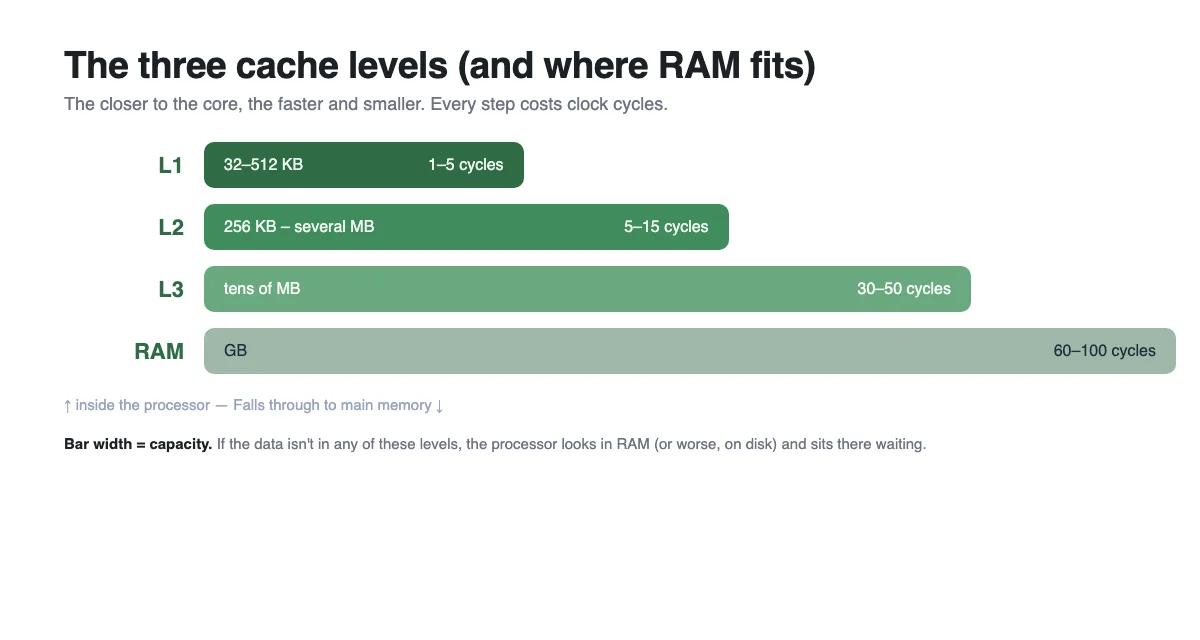
- L1: the fastest and the first to be checked. It is soldered to the core, measures 32 KB to 512 KB and answers in 1–5 cycles. In almost every current processor it is split in two, one part for instructions (L1I) and one for data (L1D), so fetching the next instruction does not evict the data you are working on.
- L2: the second step. Bigger, from 256 KB to several MB per core, and a little slower at 5–15 cycles. It is usually private to each core.
- L3: the largest, normally shared across all cores. Tens of megabytes on a desktop chip and hundreds on a server processor, with 30–50 cycles of latency. It is the last stop before the trip out to RAM.
A shared L3 has a practical consequence. Two programs doing nothing but fetching data pull on the same cache and take it from each other. A private L2 explains something else. Move a thread from one core to another and it can cost more than it looks, because the thread leaves its warm cache behind and starts cold on the new core. Vendors know this and recommend keeping it in mind when you divide work across cores.
Cache, RAM and storage: not the same thing
| Memory | What it holds | Typical capacity | Latency |
|---|---|---|---|
| Registers | The operands in immediate use | Bytes | 0–1 cycles |
| Cache | Copies of frequently used data | KB – tens of MB | 1–50 cycles |
| RAM | Everything the system is using now | GB | Tens–hundreds of cycles |
| SSD/HDD | Files, permanently | TB | Microseconds–milliseconds |
People confuse cache and RAM because both are fast and both are wiped when you cut the power. The difference is the purpose. The cache exists so the CPU does not wait on RAM. RAM exists so the system does not wait on the disk. They are three steps of the same problem, which is bringing data closer to whoever uses it. If you want to go deeper on the middle step, here is what RAM actually is and why it hurts so much when there is not enough.
One way to read the staircase clears up almost every doubt. Each level holds a partial copy of the level below, and only the part in use right now. RAM is a partial copy of the disk. The cache is a partial copy of RAM. The registers are a partial copy of the cache. Mix up the levels and you hunt the problem in the wrong place. A machine with 64 GB of RAM can still crawl if the CPU spends its day missing cache, and a huge cache will never fix a saturated disk.
CPU cache in the real world
Beyond the theory, cache shows up in very specific workloads. These are the places where it rules.
- Gaming. Graphics engines jump around big, messy data structures, and that is where L3 decides the race. It is no accident that processors with generous cache outperform their clock speed in certain games, or that vendors have stacked memory on top of the die itself to add more.
- Databases and servers. If the working set you use every day fits in cache or RAM, queries fly. If it does not, every operation hits disk. That is why the size of the working set gets measured before anyone sizes a server.
- Compression, encryption and data analysis. These tasks walk large blocks of memory in sequence, so they reward spatial locality and punish any badly aligned structure.
- Virtualisation. Several virtual machines fighting over the same physical L3 get in each other’s way. Technologies such as Intel’s per-application cache allocation let you reserve a slice for a critical process so nobody can take it away.
- Phones. On a handset, moving a thread between a big core and a small one changes both speed and battery life. Work is scheduled with the cache in mind too.
Not all cache is the processor’s
The word covers several things. Do not mix them up.
- CPU cache: hardware inside the processor. You do not configure it and you cannot clear it. The chip manages it.
- Disk cache: the operating system keeps data read from disk in RAM so it does not strike the drive again. This is why a machine with plenty of memory serves repeated files much faster. Windows even offers two modes, one that delays the write to disk and one that forces it, and its own file-caching documentation spells it out.
- Browser cache: images, scripts and styles stored on your device so they are not downloaded on every visit. This one you can clear, and sometimes you should.
- Application cache: systems such as Redis or Memcached that hold frequent results between the application and the database.
- CDN cache: intermediary servers that deliver content without regenerating it at the origin. Less latency for the user and less load on the server.
- GPU cache and TLB: the graphics card has its own hierarchy, and the processor separately keeps virtual-to-physical address translations in the TLB so it does not repeat that lookup on every access.
How to clear the cache (when you should)
The processor cache cannot be cleared. There is no button for it. What you can clear is the browser cache, and it is often the fix when a site shows an outdated version or behaves oddly.
- Quick way: force a reload with
Ctrl+F5(Windows) orCmd+Shift+R(macOS). - Full way: in the browser settings, open “Clear browsing data” and select cached images and files.
- Mobile: in the browser settings, use “Clear cache” or “Clear site data” for that specific site.
If you run a website, the other cache that matters is the server’s or the CDN’s. There you do not wipe blindly. You invalidate exactly what you need. And you do not have to guess when. HTTP already has rules for this. A Cache-Control header sets how long a response is good for. An ETag or a Last-Modified lets a client ask the server whether the file is still the same, and when it is, the server answers 304 Not Modified without resending the content. All of it is defined in the IETF standard RFC 9111 (HTTP Caching), and MDN’s HTTP caching guide turns it into practice. Cache with judgement and you save bandwidth. Over-cache and your users see stale pages.
If you are the one building the page, spare yourself the confusion. Most browsers let you keep the developer tools open with caching switched off, so you test the version you just wrote instead of the version your browser remembers.
How to tell if the cache is holding you back
The good news is that you do not have to guess at it, because you can measure it. Processors carry performance counters that record hits and misses, and there are tools to read them without touching the hardware.
On Linux, perf stat shows a process’s cache miss rate and its instructions per cycle (IPC) at a glance. Low IPC with the CPU pinned at 100% is the classic signature of a memory bottleneck. On Windows, Performance Analyzer and the tools from Intel and AMD get you to the same place. Watch how many misses arrive per thousand instructions, and whether that count drops when you change the program. The raw total always has some misses in it, so it tells you less on its own.
Once you have measured, the countermeasures are few and known. Walk data in the order it sits in memory. Group information you use together into one structure. Tile the loops that work over large blocks (blocking or tiling). Stop two threads from writing to different positions on the same cache line, because they invalidate each other for no reason. None of this is magic. It is remembering that a line is 64 bytes and that fetching one costs.
You can feel it with a cheap experiment on your own code. Take one loop and walk the data in two different orders. Same operations, same result, and a stopwatch that tells two different stories. When the gap appears, you have found a memory bottleneck.
When the cache explains why something “feels slow”
A CPU cache does not break the way a disk breaks. There is no log, no restart, no way to clear it. What can happen is that the system’s access pattern does not suit it. When that happens, three signals appear.
- High CPU with little progress. The processor is busy waiting for data, not doing useful work.
- Irregular latency. Everything is fine until several processes compete for the same cache space and evict each other’s data. This is the famous thrashing.
- Something that will not scale. Adding threads or processes does not help, or even makes things worse, because contention outweighs the benefit.
If you recognise the pattern, review what the program does with memory before you consider swapping the processor. Reordering data is almost always cheaper than buying hardware.
Frequently asked questions
What is the difference between cache and RAM?
The cache is small, very expensive and lives next to the processor. Its job is to keep the CPU from waiting on RAM. RAM is bigger and slightly slower, and it exists so the system does not have to lean on the disk. Two different steps of the same staircase.
Can you upgrade a processor’s cache?
No. It is built into the chip and cannot be changed. That is why, when you compare processors, cache size is a fixed figure that makes a real difference, especially on repetitive workloads.
What is a cache miss?
It is an access that fails to find the data in cache and has to drop to a lower level, usually RAM. Every miss costs tens or hundreds of cycles, so what you watch is the share of misses across the whole run.
Is clearing the cache bad?
Not bad, but it has a cost. The next time you visit that site, everything downloads again. So do not do it “just in case”. Do it when you suspect you are looking at an old version.
Does the browser cache make websites slower?
The opposite. Used well, it makes them load faster. The problem is not that it exists. The problem is that it can hold a stale version. That is why serious sites pair caching with validation. The browser reuses what has not changed and asks only about what has.
Why does a file open faster the second time?
Because the first read left it in the disk cache. The second read is served from memory instead of storage. If that gap looks huge to you, it is worth reviewing where your machine’s bottlenecks actually are.
The bottom line
The cache is one of those parts you never configure and that never shows its face, yet it decides whether a system runs free or drags. You do not need a degree in microarchitecture to profit from it. Understand the staircase, from L1 and L2 and L3 down to RAM and disk, and remember that every step down costs you time. Then remember one more thing. Most of the time, distance to the data matters more than raw processor power.
So the next time something “feels slow”, before you reach for the off-and-on switch, ask yourself one simple question. Is the processor working, or is it waiting?